A quarterly user access review that asks managers to attest every entitlement gets rubber-stamped and misses what attackers use. Scope it instead to admin roles, OAuth grants, browser extensions, guests and dormant accounts in each tenant, remove by default whatever no named owner justifies, and then change the settings that let the same access grow back.
This guide is for an IT lead or a one-person security team on Microsoft 365 or Google Workspace plus Slack, with no identity governance product: where to look in each platform, what to cut, how to revoke without breaking a business process, and a worksheet to fill in on this page.
How often should user access be reviewed?
Quarterly for accounts and for admin and non-human access, annually as the floor for everything else, and immediately on events: a leaver, a role change, an incident. Frameworks set minimums, not a single mandated cycle, and they differ.
Source | What it says about frequency |
|---|---|
CIS Controls v8.1, Safeguard 5.1 | Validate that all active accounts are authorized "at a minimum quarterly, or more frequently" (CIS) |
CIS Controls v8.1, Safeguard 5.5 | The same minimum for service accounts |
CIS Controls v8.1, Safeguard 6.8 | Access control reviews of privileges "at a minimum annually" (CIS) |
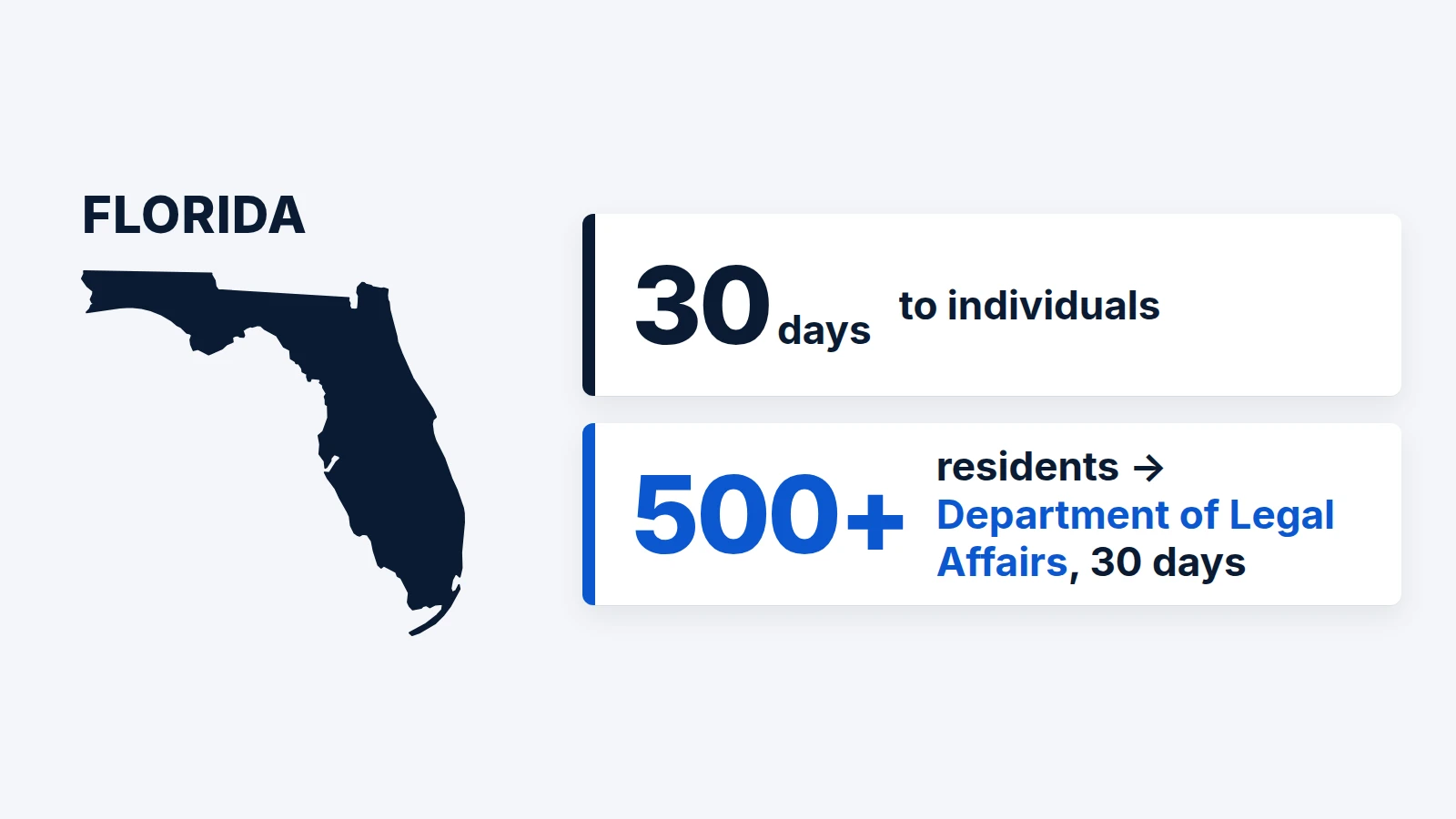
NYDFS 23 NYCRR 500.7(a)(4) | Review all user access privileges "periodically, but at a minimum annually" and remove unnecessary ones; applies only to NYDFS-covered entities (DFS) |
NIST SP 800-53 Rev. 5, AC-2 and AC-6(7) | Frequency is an organization-defined parameter (NIST) |
Microsoft, emergency access accounts | Validate that they work "at least every 90 days" (Microsoft Learn) |
In our view, quarterly is the right cycle for a team this size because admin roles and OAuth grants change faster than annual reviews can catch, and CIS already sets that cadence for accounts. Event triggers sit on top of it: CIS Safeguard 6.2 ties disabling access to termination, rights revocation or role change, and NYDFS 500.7(a)(6) requires promptly terminating access after departures.
What is in scope, and who owns each part?
Scope is whatever can read or change company data at scale; the rest waits for the annual pass.
- Admin roles in each tenant, active and, where you have it, eligible.
- OAuth grants and app installs: what third-party apps can read or do with a user's or the whole tenant's data.
- Browser extensions on managed browsers.
- Guests and external users.
- Dormant accounts.
- Partner and vendor admin access, such as an IT provider's delegated rights.
Owners, by role: the security lead or IT lead runs the review and signs the worksheet; each app has a named business owner who justifies it or loses it; the CIO, CISO or equivalent approves exceptions with an expiry date. Without a named owner, the default is removal (see "How do I remove access without breaking things?").
Where does each platform show admins and grants?
Each platform has a built-in list or export for the review; the table gives the path and the license limit that matters.
Item | Microsoft 365 / Entra | Google Workspace | Slack |
|---|---|---|---|
Admin roles | Roles and administrators; download all active role assignments to CSV, no P2 needed (Learn). Eligible PIM assignments show only with Microsoft Entra ID Governance licenses or Microsoft Entra ID P2 licenses. Look for the PRIVILEGED label | Menu > Account > Admin roles; View admins per role (super admin required) (Help) | Admin > Workspace settings > People: review Owners and Admins there and use Change account type to demote (Help). For the full member list, Export full member list under Manage members, all plans (Help) |
Roles held through a group or service account | The role view shows whether a role was assigned directly or via a group; expand group membership before counting | An admin role can be assigned to a group or service account instead of a user | Not applicable |
App grants | Entra ID > Enterprise apps > Permissions: Admin consent tab for tenant-wide grants, User consent tab for per-user grants (Learn) | Security > Access and data control > API controls > Manage App Access: Accessed apps with the scopes each uses; download as CSV (Help). Details appear 24-48 hours after authorization | Tools & settings > Manage apps > Installed Apps; on each app's Configuration tab, Authorizations lists the members who set up each connection (Help) |
Tenant-wide access without user consent | Application permissions: only an administrator can consent, so check who did | Domain-wide delegation: the app reaches the data of all your users (Help). Security > Access and data control > API controls > Manage Domain Wide Delegation | Scopes are approved with the app; review the scopes of each installed app |
Last use | Service principal sign-in activity report needs P1 or P2; last sign-in via Graph needs P1 or P2 | OAuth log events (Reporting > Audit and investigation), kept 6 months (Help) | Access logs on Pro, Business+, and Enterprise show sign-ins and actions through apps; audit logs on Enterprise plans only (Help) |
Partner or vendor admin access | Partner relationships page in the Microsoft 365 admin center; remove with Remove roles (Learn) | Check admin role holders and any delegated accounts used by your IT provider | Check owners and admins for contractor accounts |
What can you not see without a governance license?
Four limits shape the review.
- Entra logs are short. Audit and sign-in logs are kept seven days on Free and 30 days on P1 and P2 (Learn). A quarter-long review cannot rely on the portal. Export or route the logs to storage you control.
- Eligible roles and app last use need P2 or P1. PIM needs Microsoft Entra ID Governance licenses or Microsoft Entra ID P2 licenses. Entra Access Reviews need Microsoft Entra ID Governance or Microsoft Entra Suite subscriptions, and reviewers need a license too, with some capabilities running on P2 (Learn). P2 comes with Microsoft 365 E5 or E7. Without them, the CSV export and a worksheet do the job.
- Slack audit logs are Enterprise-only. Access logs need Pro or higher. On lower plans you have the member export, the Installed Apps list and, if your plan includes them, access logs.
- Google keeps OAuth and Admin logs for 6 months, so export them each quarter.
Who keeps admin, and what should replace the rest?
Keep admin for people whose daily work needs it, in as few accounts as possible, each used only for admin tasks. Everyone else gets a narrower role or time-limited access.
Counts. Microsoft recommends fewer than five Global Administrators and fewer than 10 privileged role assignments; the Entra Overview page shows an alert card once there are five or more Global Administrator assignments, and the Roles and administrators page warns above 10 privileged role assignments (Learn). The CISA SCuBA baseline for Microsoft Entra ID says a minimum of two and a maximum of eight Global Administrators, and that range includes emergency access accounts. The SCuBA Google Workspace baseline sets two to eight super admins and excludes break-glass accounts. SCuBA is written for US federal agencies and CISA labels it informational for everyone else, so treat it as a benchmark. In Entra, two emergency accounts plus named admins, with the total kept below the Microsoft limit, satisfy both.
Substitute roles. Most "needs Global Admin" requests have a smaller answer. Microsoft's task-to-role table points to Password Administrator for resetting non-admin passwords, Reports Reader for audit and sign-in logs, and Cloud Application Administrator for consenting to delegated permissions (Learn); its Microsoft 365 admin-center guidance also names Helpdesk Administrator for password resets. Consenting to Graph application permissions typically needs Global Administrator, so that request deserves a second look. In Google Workspace, delegate to limited admin roles rather than super admin. In Slack, the Integrations Admin and Users Admin system roles exist only on Business+ (limited roles) and Enterprise plans; on Free and Pro you choose between Owner, Admin and member, so be strict about who gets Admin.
Separate admin accounts. Microsoft says to create separate accounts for Global Administrator tasks and to forward their email to a working mailbox (Learn). Google advises giving each super admin a separate account for daily activities. CIS Safeguard 5.4 adds that browsing, email and productivity use belong on the non-privileged account. In practice: the admin account does admin work only, never mail or browsing, and its notifications reach a monitored mailbox.
Break-glass. Keep two cloud-only emergency accounts on the *.onmicrosoft.com domain, with phishing-resistant methods different from your normal admin accounts, excluded from blocking Conditional Access policies, with alerts on any use. Validate them every 90 days. The quarterly review is the natural place to do it.
Review sequence.
- Within one week before the review, the IT lead exports admin roles from all three platforms and expands any group or service-account assignments. Verify: the worksheet lists a person or account for every assignment.
- For each assignment, the owner of the role (the person's manager or the app owner) states the task that needs it. Verify: each row has a task in one line.
- The IT lead proposes a narrower role or eligible-only access where the task allows. Verify: the proposed role appears in the worksheet.
- Anyone not justified by day 11 of the removal sequence below loses the role.
Which OAuth grants and extensions should go?
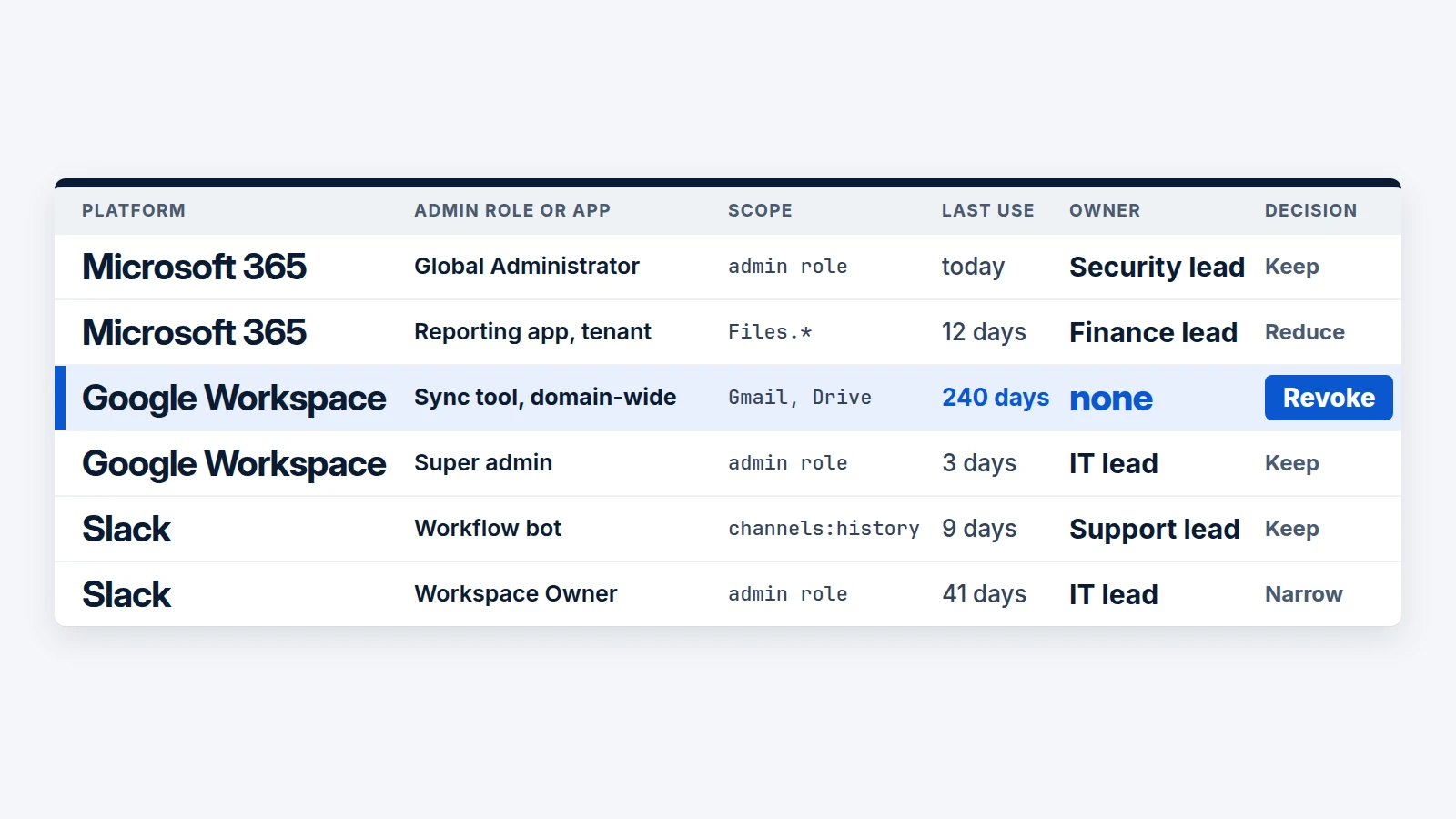
Remove grants that no one owns, that nobody has used in a quarter, or that hold broad mail, file or tenant-wide access without a business reason. Triage with signals, then decide keep, reduce or revoke. The 90-day inactivity cut is our analysis; Microsoft calls 90 to 180 days a reasonable window for inactive user accounts, and CIS uses 45 days for dormant accounts.
Consent phishing explains why this matters. An attacker registers an app, the victim sees a genuine consent prompt for it, and the granted tokens give the app access to the victim's data without the victim's password. Microsoft's incident-response playbook describes the technique, and the evidence it leaves is an audit entry named "Consent to application" (Learn). Because the access is a grant and not a login, it can survive a password change. Google revokes tokens on password change only for certain products; Apps Script is excluded even when the script accesses mail (Help).
Signal | What to look for | Decision |
|---|---|---|
Tenant-wide consent | Entra grants marked "AllPrincipals" (consented for the whole tenancy); Microsoft says every non-Microsoft app with this should be reviewed carefully | Keep only with an owner and a documented need; otherwise revoke |
Application permissions | Granted by an administrator, so a person is accountable | Confirm the admin who consented and the owner |
Mail or file read scopes | Microsoft's high-risk list includes Mail., Contacts., MailboxSettings., People., Files., Notes., Directory.AccessAsUser.All, User_Impersonation; Google lets admins restrict a predefined list of high-risk scopes for Gmail, Drive, Docs and Chat | Reduce to the narrowest scope the app needs, or revoke |
Offline access paired with other broad permissions | Long-lived refresh tokens | Treat as the underlying scope: reduce or revoke |
Unverified publisher | Publisher verification only confirms identity; Microsoft notes the badge says nothing about quality | Do not treat the badge as a reason to keep |
No use in 90 days | Last-use data (see the table above) | Revoke after notice |
Consented by a leaver | The consenting user is disabled or gone | Reassign an owner or revoke |
Domain-wide delegation client (Google) | Reaches all users' data without consent | Owner and need required; review service accounts regularly |
Legacy test or forgotten app with elevated access | Midnight Blizzard compromised a legacy test OAuth application with elevated access to Microsoft's corporate environment (Microsoft) | Look specifically for apps with EWS.AccessAsUser.All or EWS.full_access_as_app, and for any remaining ApplicationImpersonation assignments in Exchange Online (Microsoft has since retired that role) |
For defenders, the stolen or forgotten integration is the entry point, not a sign-in. In August 2025, the actor tracked as UNC6395 used compromised OAuth tokens tied to the Salesloft Drift application to reach Salesforce instances; Google also says that on August 9 a threat actor used compromised tokens for the "Drift Email" integration to access email in a very small number of Google Workspace accounts (Google Threat Intelligence). Apps already holding company data that fail triage go to your vendor review process. If an AI tool shows up in the grant list, add it to your AI tool register.
Extensions. On Chrome, the apps and extensions usage report is the easiest inventory (Chrome Enterprise Help). Choose one of two modes: block all and manage an allowlist (users can request extensions), or allow all and manage a blocklist. On Edge, the runtime_blocked_hosts policy keeps extensions from reading or changing the sites you list, which is how you keep them off your sign-in and mail pages (Learn). A blocked permission disables the extension; it does not remove it.
Where an AI agent can help. A defensive agent can read the exports, flag rows that match the signals above and draft a proposed decision for each. It needs read-only access to the CSVs and logs, not to the consoles. A human owner decides and a human runs every revocation.
How do I remove access without breaking things?
Notify, wait, then remove, in stages: the three platforms handle removal differently, and some side effects are immediate. The notice window itself is our analysis.
- Day 0, IT lead: send each app owner and role holder the list of what you plan to remove, with the date. Verify: every row has an owner notified in the worksheet.
- Days 1-10, owners: reply with a business reason or no reply. Business reasons go into the worksheet with an expiry date for the exception.
- Day 11, IT lead: remove admin roles first, then revoke grants and uninstall apps with no justification. Verify: re-run the exports and compare counts.
- Days 12-14, IT lead: watch support tickets and the sign-in and app logs. Re-grant on evidence of a real dependency, with an owner.
Platform behavior to plan for:
- Entra. You cannot revoke permissions on the User consent tab in the portal; use Microsoft Graph or PowerShell (Learn). For a suspicious app, disable it rather than delete it: a deleted app can return when another user grants consent, while a disabled one can't obtain new tokens and nobody can consent to it. Existing access tokens stay valid until they expire (Learn).
- Google Workspace. Switching a service's access to Restricted stops untrusted apps that were previously installed and revokes their tokens, so run the notice window first. Deleting a domain-wide delegation client makes dependent applications stop working immediately.
- Slack. Restricting an app does not remove an installed one; members can keep using it until you uninstall it. To cut a single person's connection, use Revoke under Authorizations.
- Accounts. Prefer disabling to deleting; CIS notes that disabling may be necessary to preserve audit trails.
What settings stop the access from growing back?
Defaults let any user connect apps on all three platforms, so the review treats a symptom until you change the settings. Make these changes once, then verify them every quarter.
Platform | Setting | Verify |
|---|---|---|
Microsoft Entra | Limit user consent to verified publishers and low-impact permissions; Microsoft's recommendation is to allow user consent only for apps from verified publishers. Entra ID > Enterprise apps > Consent and permissions > User consent settings | The setting is not "Allow user consent for apps" |
Microsoft Entra | Turn on the admin consent workflow ("Users can request admin consent to apps they are unable to consent to"); only a Global Administrator can approve Graph application permission requests. SCuBA also says only administrators should register applications | A named reviewer list exists and requests get a response |
Microsoft Entra | Admin roles on request, with expiry (PIM, where licensed); alert on eligible and active highly privileged assignments | New assignments appear in an alert, not at the next review |
Google Workspace | Change from the default "Allow users to access any third-party apps" to blocking access until configured, and allow only approved Marketplace apps | The Manage App Access list shows only configured apps |
Google Workspace | Multi-party approval for admin role changes | Role changes show an approver |
Slack | Admin > Apps and workflows > App Management Settings > "Only allow pre-approved apps"; available to Workspace Owners on all plans. Members cannot sign in to other services with Slack by default | Install attempts become requests; each approval names the owner and approves the scopes |
Browsers | Extension allowlist on Chrome, or blocked hosts on Edge | The usage report shows no unreviewed extensions |
What evidence does the review leave?
Keep the signed worksheet, the before-and-after counts of admins and grants from your exports, and the dated list of exceptions with expiry. In our view, these are the artifacts an auditor will ask for against a framework requirement such as CIS 5.1 or NYDFS 500.7. We found no primary source that says what an insurer asks to see; in our view, the same three artifacts answer most admin-access questions.
Retention limits what you can show later. Export Entra logs (seven or 30 days in the portal), keep Google's 6-month OAuth and Admin logs in mind, and export Slack audit logs on Enterprise plans (Slack retains them for a maximum of two years). SCuBA's Google baseline asks that audit logs be searchable for at least 3 months and retrievable for 12.
What does the review catch that offboarding missed?
Offboarding disables the person. The review finds what survived: a leaver's OAuth grants that outlive a password reset, an app they consented to, a role granted through a group, and a guest invited by someone who left. CIS Safeguard 6.2 and NYDFS 500.7(a)(6) both require prompt removal after departures. The quarterly sweep does not replace the leaver sequence; it only looks for leftovers.
Worksheet: build your access review record
Fill in the review below. Your answers stay in your browser; download a Word copy or print to PDF for the file.
Quarterly SaaS access review
Three parts: the review header, the admin roles you found, and the apps and extensions you triaged. Leave blank what you do not know yet.
Saved only in this browser. Nothing is sent to us.Who ran the review, who signs it, and which tenants it covers.
0 of 7 filled